Optimizing the checkout flow
Murator Case Study
Murator Case Study
Enhancing the existing Murator landing page and streamlining the entire checkout flow to deliver a superior user experience and a visually refined UI.
Enhancing the existing Murator landing page and streamlining the entire checkout flow to deliver a superior user experience and a visually refined UI.
Challenge & Pain Points
Identifying barriers in the subscription journey
Murator’s original subscription flow was cluttered, visually inconsistent, and difficult to compare. To identify the main friction points, I audited the journey against Baymard Institute’s e-commerce UX guidelines and benchmark findings.
The audit revealed issues across plan comparison, cart confidence, checkout clarity, and brand trust. These findings shaped the redesign direction: reduce decision effort, increase trust, and remove checkout friction.
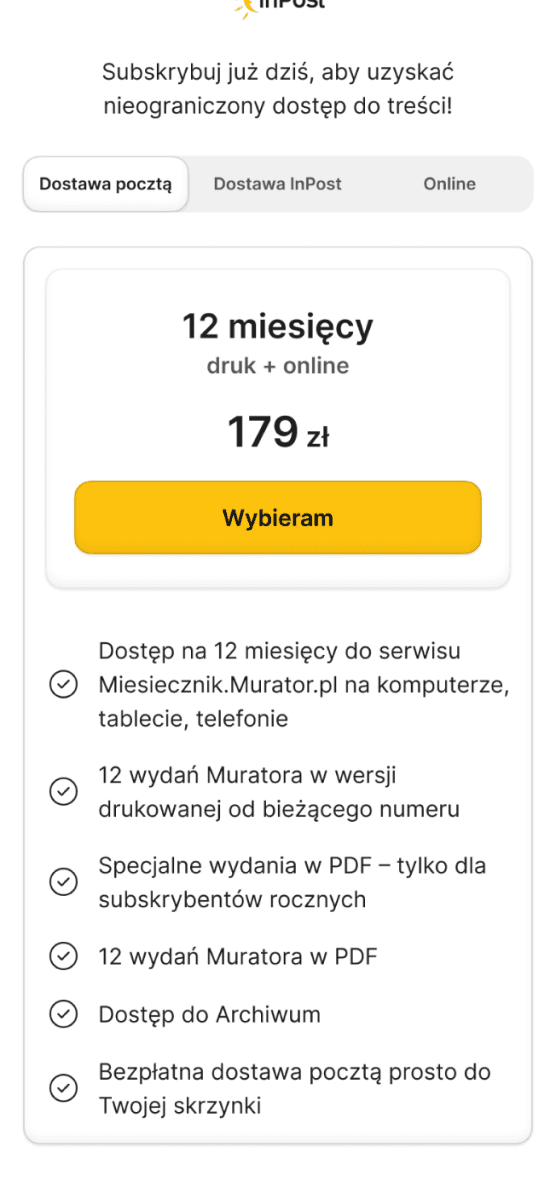
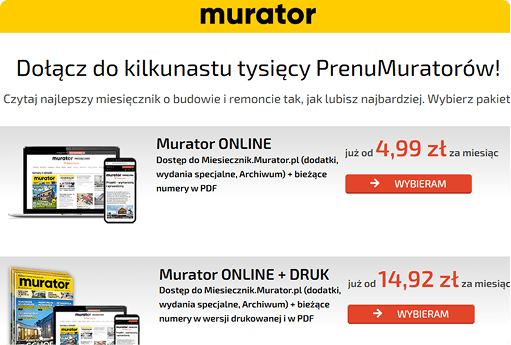
Confusing offer layout: The current offer layout makes plan comparison difficult. Users have to scan too much information before understanding the difference between options.
Unclear benefits: Users may not immediately understand what they are paying for. The value of each subscription plan is hidden in dense descriptions.
Landing Page Pain Points
Cart Pain Points
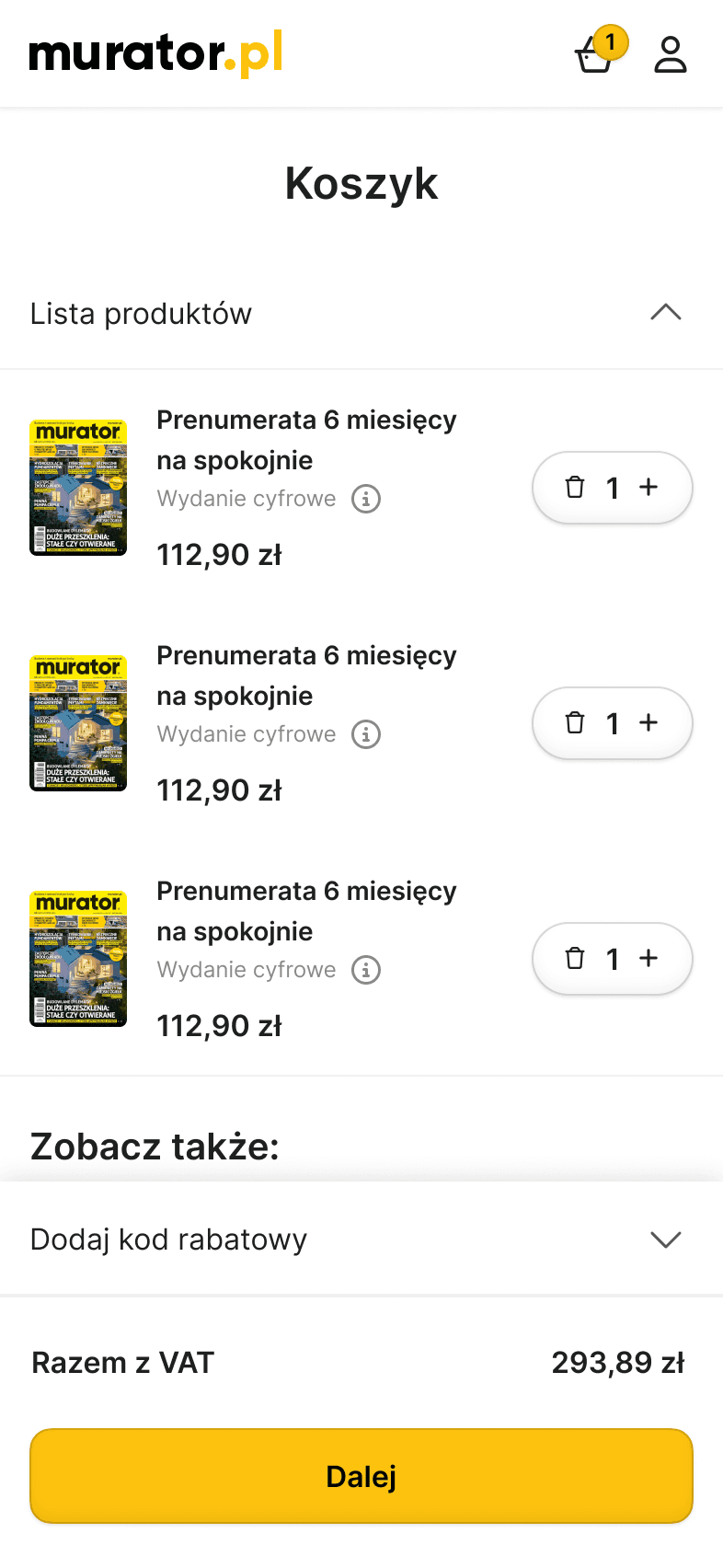
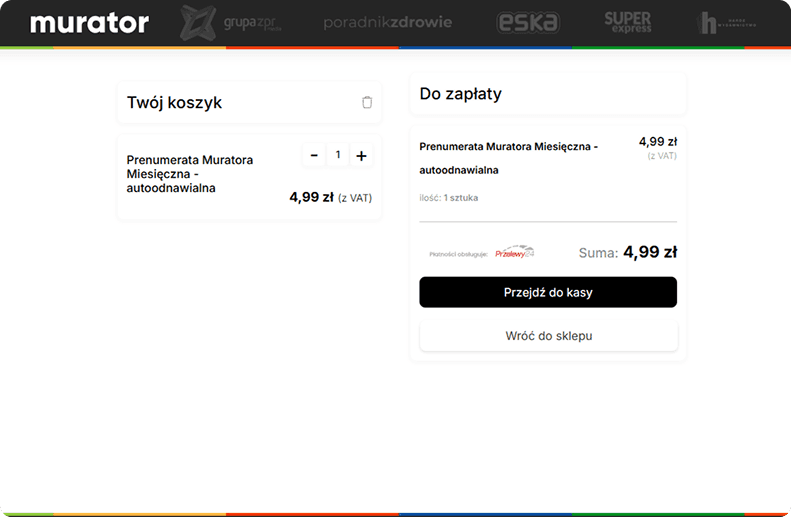
Missing Product Visuals: Lack of thumbnails in the cart reduces visual trust Baymard research shows that 10% of users abandon carts when they can't visually verify their items.
Inconsistent Header: Checkout feels disconnected from the main brand experience. Baymard reports that 19% of users abandon when they don’t trust a site with payment details.
Missing Brand Identity: Key Murator brand cues disappear during checkout, making the payment flow feel less familiar and less trustworthy.
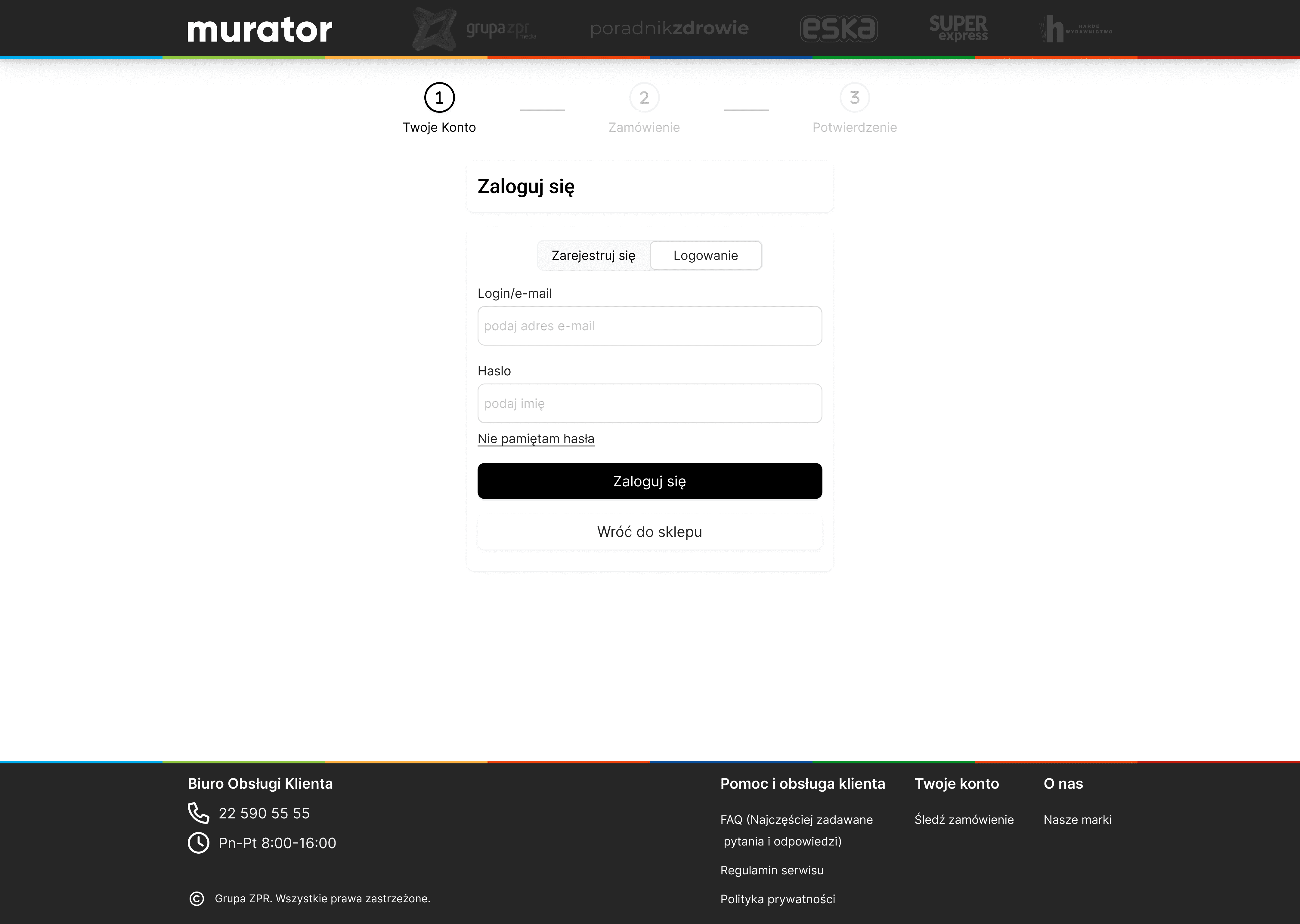
Login Page Pain Points
No Guest Checkout: Forced registration is the #2 reason for cart abandonment, causing an average loss of 24-35% of potential customers according to Baymard industry data.
Confusing offer layout
Problem: The current offer layout makes plan comparison difficult. Users have to scan too much information before understanding the difference between options.
Unclear benefits
Problem: Users may not immediately understand what they are paying for. The value of each subscription plan is hidden in dense descriptions.
Missing Brand Identity
Problem: Key Murator brand cues disappear during checkout, making the payment flow feel less familiar and less trustworthy.
Missing Product Visuals
Problem: The cart lacks clear product thumbnails, making it harder for users to visually confirm what they selected.
Inconsistent Header
Problem: Checkout feels disconnected from the main brand experience. Baymard reports that 19% of users abandon when they don’t trust a site with payment details.
No Guest Checkout
Problem: Forced registration creates unnecessary friction. Baymard reports that 19% of users abandon because the site wants them to create an account.
Discovery Phase
Finding why users leave the cart
I started the discovery phase by interviewing stakeholders to identify the main friction points, because tracking data wasn't available at the start of the project. I asked targeted questions to find out where users usually drop off and how much time they need to finish the process, which helped me understand the biggest bottlenecks from the team's perspective.
I started the discovery phase by interviewing stakeholders to identify the main friction points, because tracking data wasn't available at the start of the project. I asked targeted questions to find out where users usually drop off and how much time they need to finish the process, which helped me understand the biggest bottlenecks from the team's perspective.
To prioritize these insights, I used the Moscow Method to align the design with our business goals and ensure the team focused on the right tasks. We categorized multiple features during the workshop, deciding for example that a simplified Guest Checkout was a "Must Have", while more complex elements like User Profiles were "Could-haves" and Google login integrations were markes as "Won't Have".
To prioritize these insights, I used the Moscow Method to align the design with our business goals and ensure the team focused on the right tasks. We categorized multiple features during the workshop, deciding for example that a simplified Guest Checkout was a "Must Have", while more complex elements like User Profiles were "Could-haves" and Google login integrations were markes as "Won't Have".
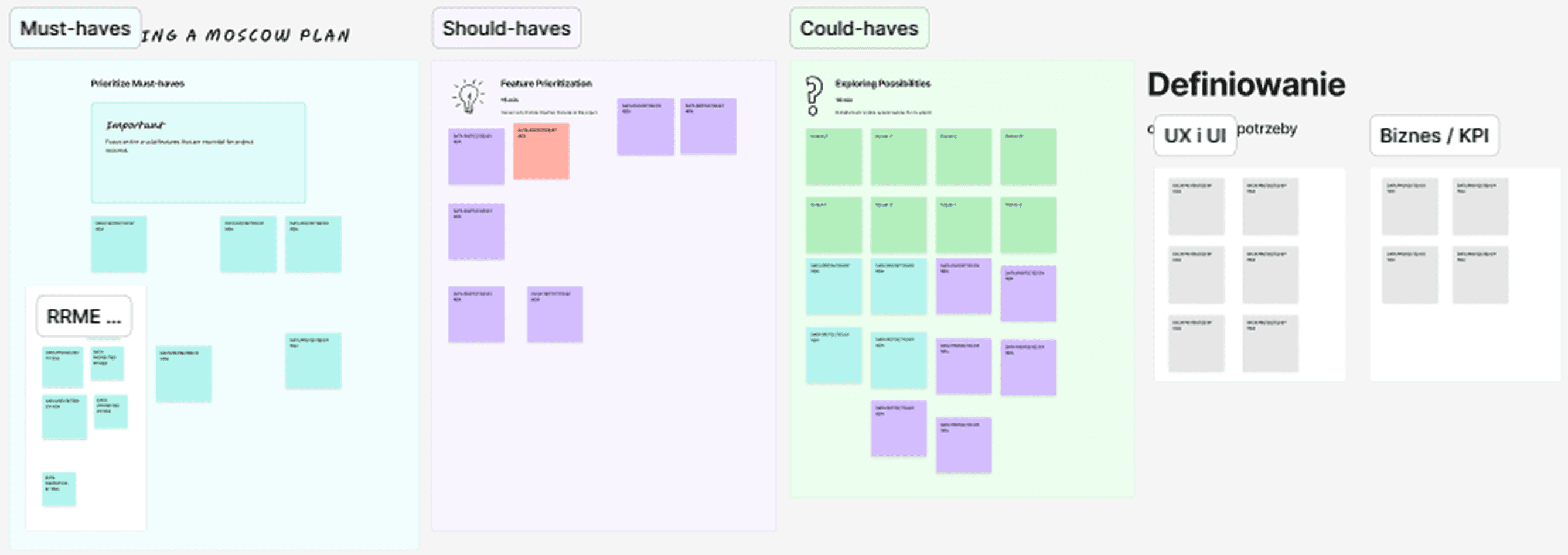
MoSCoW workshop with client and team. Content hidden due to NDA.
Benchmarking
Benchmarking based on Baymard’s patterns to reduce cognitive load
I analyzed six different subscription and e-commerce services to find the best solutions. I decided to focus on Apple and IKEA because they are industry leaders in implementing Baymard Institute's e-commerce guidelines, specifically regarding the Guest Checkout experience.
I analyzed six different subscription and e-commerce services to find the best solutions. I decided to focus on Apple and IKEA because they are industry leaders in implementing Baymard Institute's e-commerce guidelines, specifically regarding the Guest Checkout experience.
Apple Checkout Flow
I analyzed Apple’s process to find the best solutions for Murator. I focused on how they simplify the experience by removing distractions and keeping the user focused on the transaction.
I analyzed Apple’s process to find the best solutions for Murator. I focused on how they simplify the experience by removing distractions and keeping the user focused on the transaction.
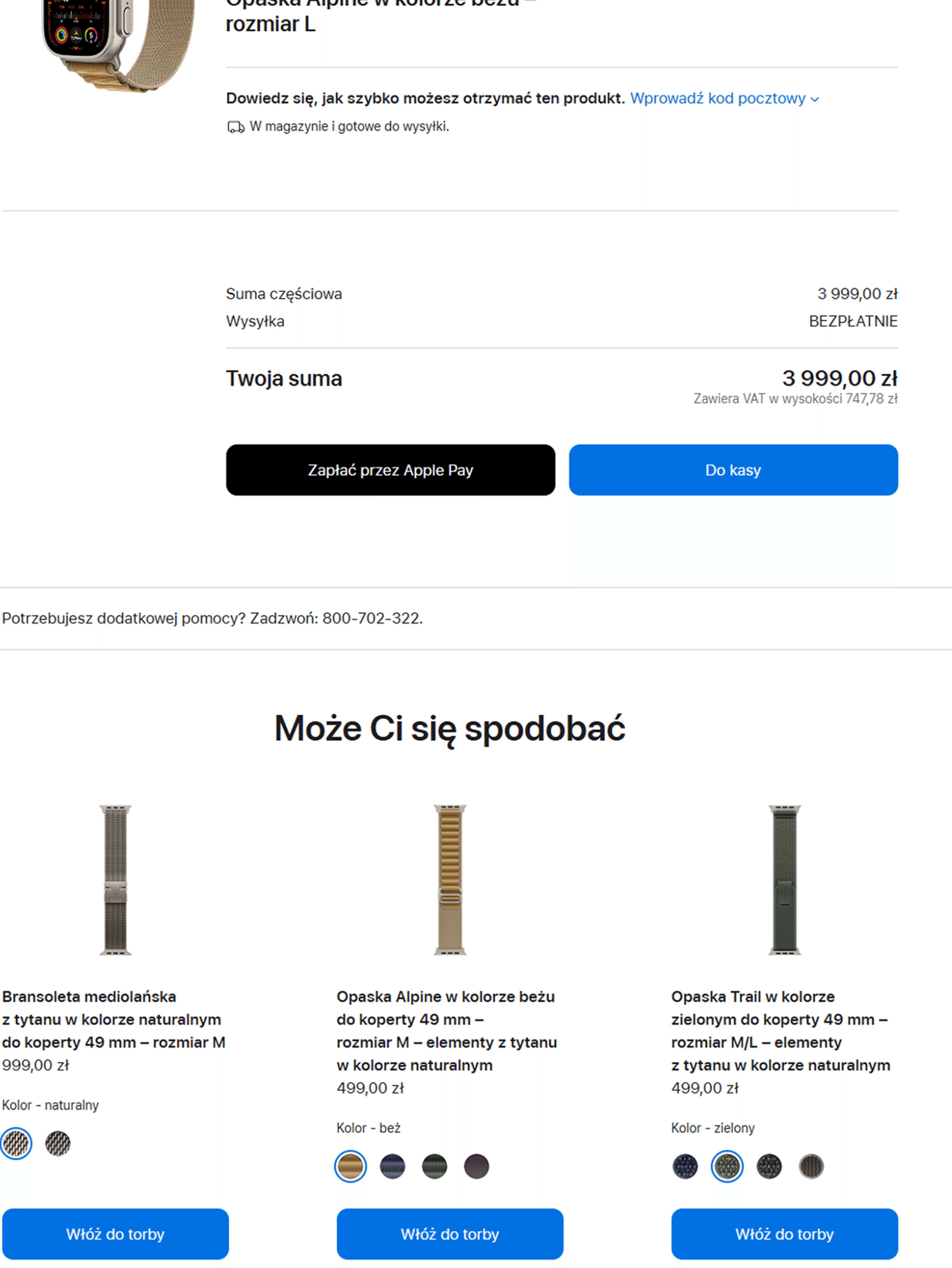
Cart Outcome
Cross-selling: Product recommendations should appear after the main cart decision and stay highly relevant. Baymard found that 52% of desktop sites make cart cross-sells too generic or irrelevant.
One-click Conversion: Apple Pay reduces manual form entry and speeds up checkout. Baymard reports that 10% of users abandon when there aren’t enough payment methods.
One-click Conversion
Apple Pay reduces manual form entry and speeds up checkout. Baymard reports that 10% of users abandon when there aren’t enough payment methods.
Crosselling
Apple shows product recommendations after the main cart decision, without interrupting checkout. Baymard found that 52% of desktop sites make cart cross-sells too generic or irrelevant.
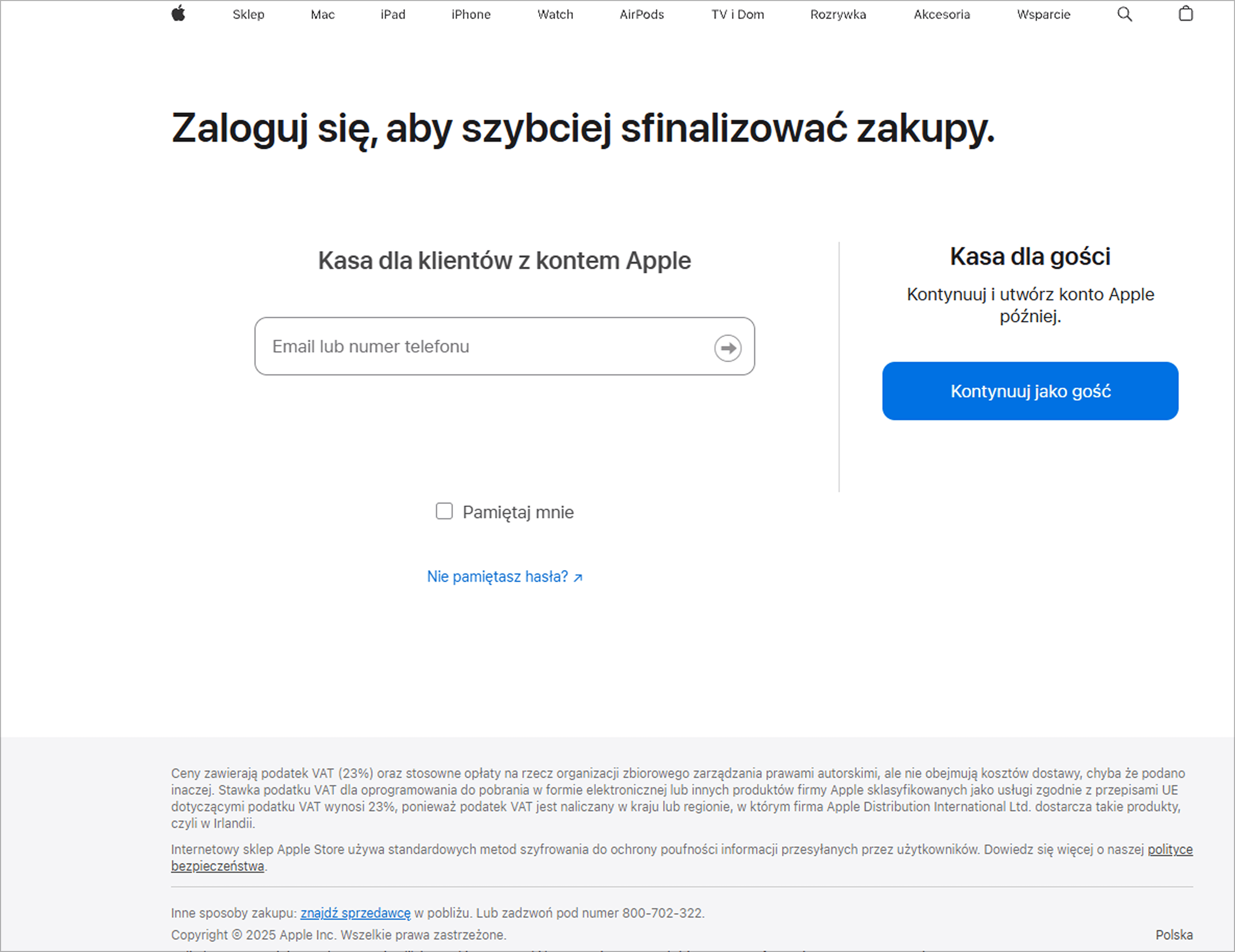
Guest Checkout Strategy
Apple makes guest checkout highly visible. Baymard reports that 62% of sites still fail to make guest checkout prominent enough.
Login Page Outcome
Guest Checkout Strategy: Apple makes guest checkout highly visible. Baymard reports that 62% of sites still fail to make guest checkout prominent enough.
Delivery Outcome
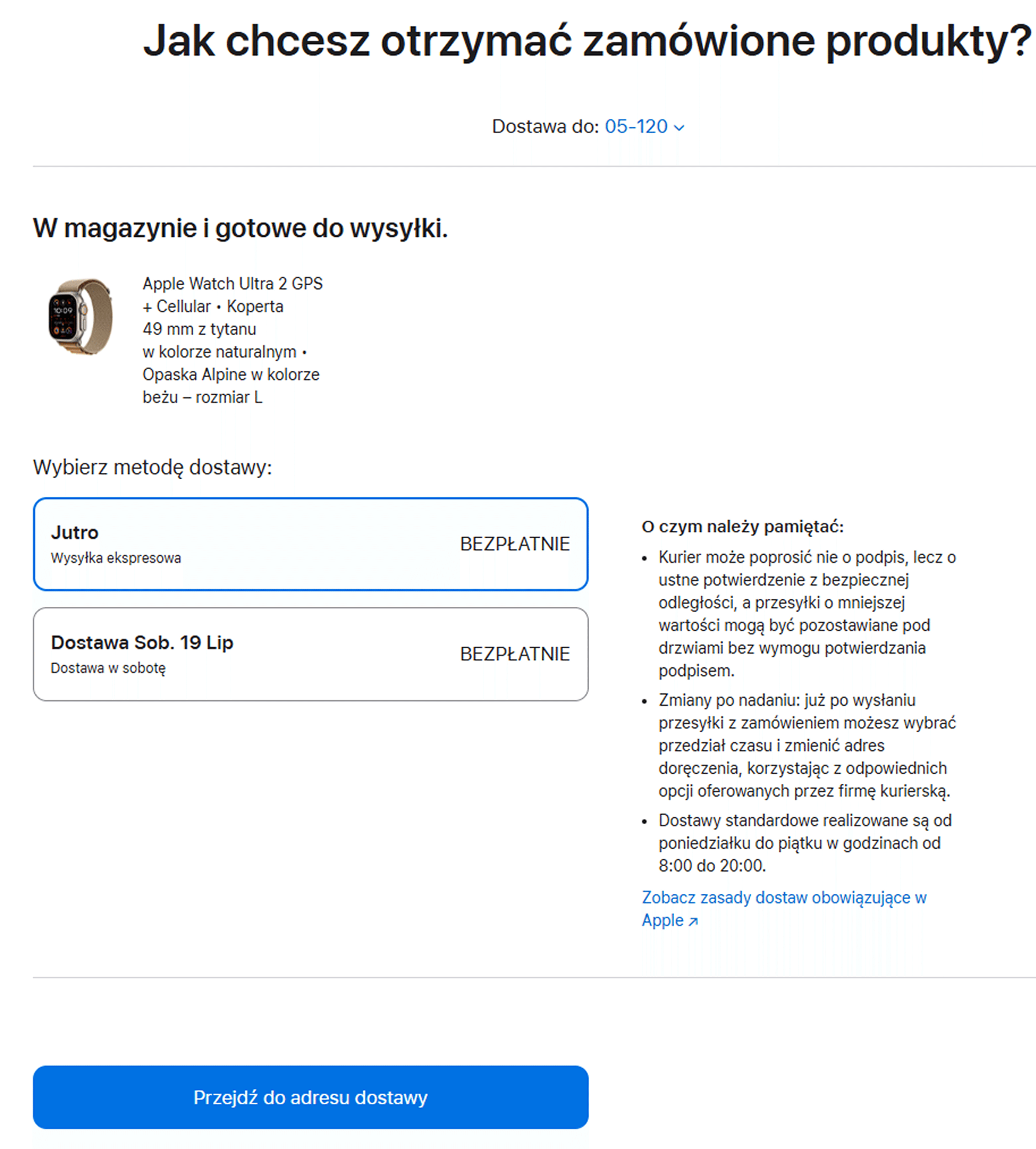
Delivery Scheduling: IKEA prioritizes clear delivery and pickup options. Baymard recommends showing delivery dates instead of vague shipping speeds.
Checkout Outcome
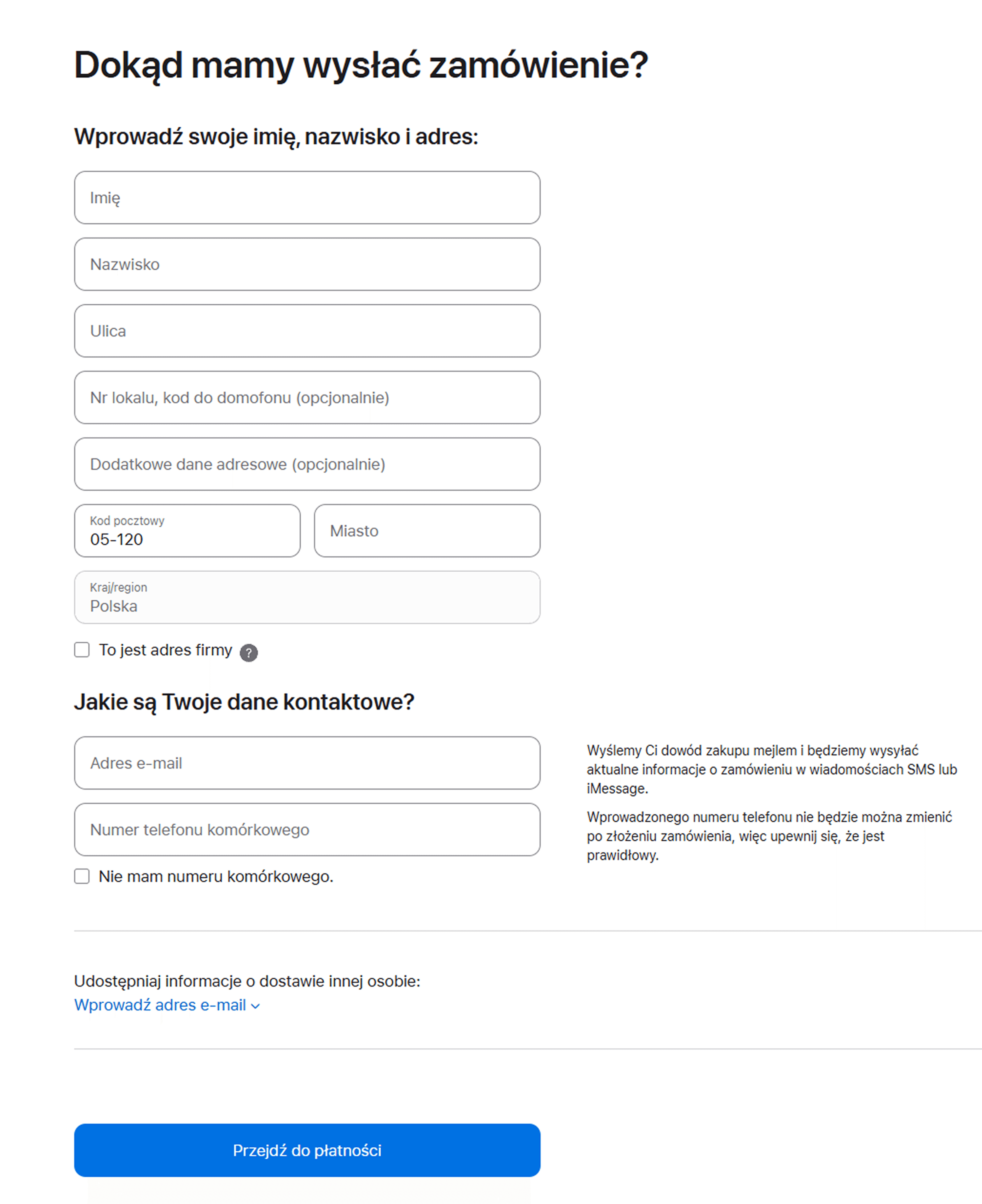
Minimalist Checkout Environment: Apple keeps checkout focused by limiting distractions and navigation, helping users stay concentrated on completing the purchase.
Delivery Scheduling
IKEA prioritizes clear delivery and pickup options. Baymard recommends showing delivery dates instead of vague shipping speeds.
Delivery Scheduling
Replacing generic shipping methods with specific arrival dates builds transparency and is proven to improve checkout conversion by an average of 8%.
Minimalist Checkout Environment
Apple keeps checkout focused by limiting distractions and navigation, helping users stay concentrated on completing the purchase.
Ikea Checkout Flow
I studied IKEA to see how they handle complex steps like delivery and cart updates. I focused on their modal windows and smart summaries to keep the transition from the product page to the checkout as smooth as possible.
I studied IKEA to see how they handle complex steps like delivery and cart updates. I focused on their modal windows and smart summaries to keep the transition from the product page to the checkout as smooth as possible.
Upselling Strategy
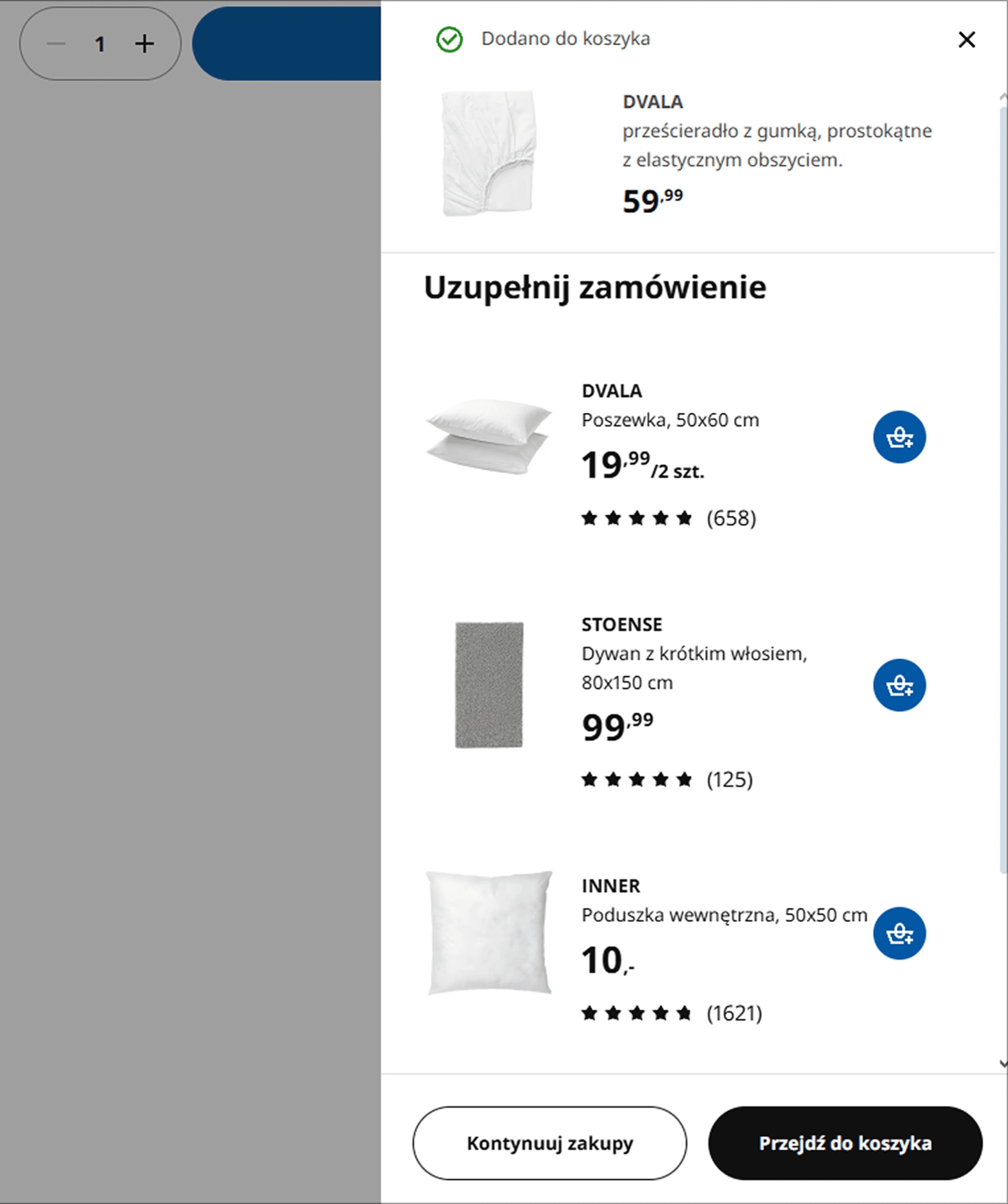
Smart Cart Summary: Add-ons should stay secondary to the main purchase. This keeps the cart focused while still allowing relevant recommendations.
Cart Outcome
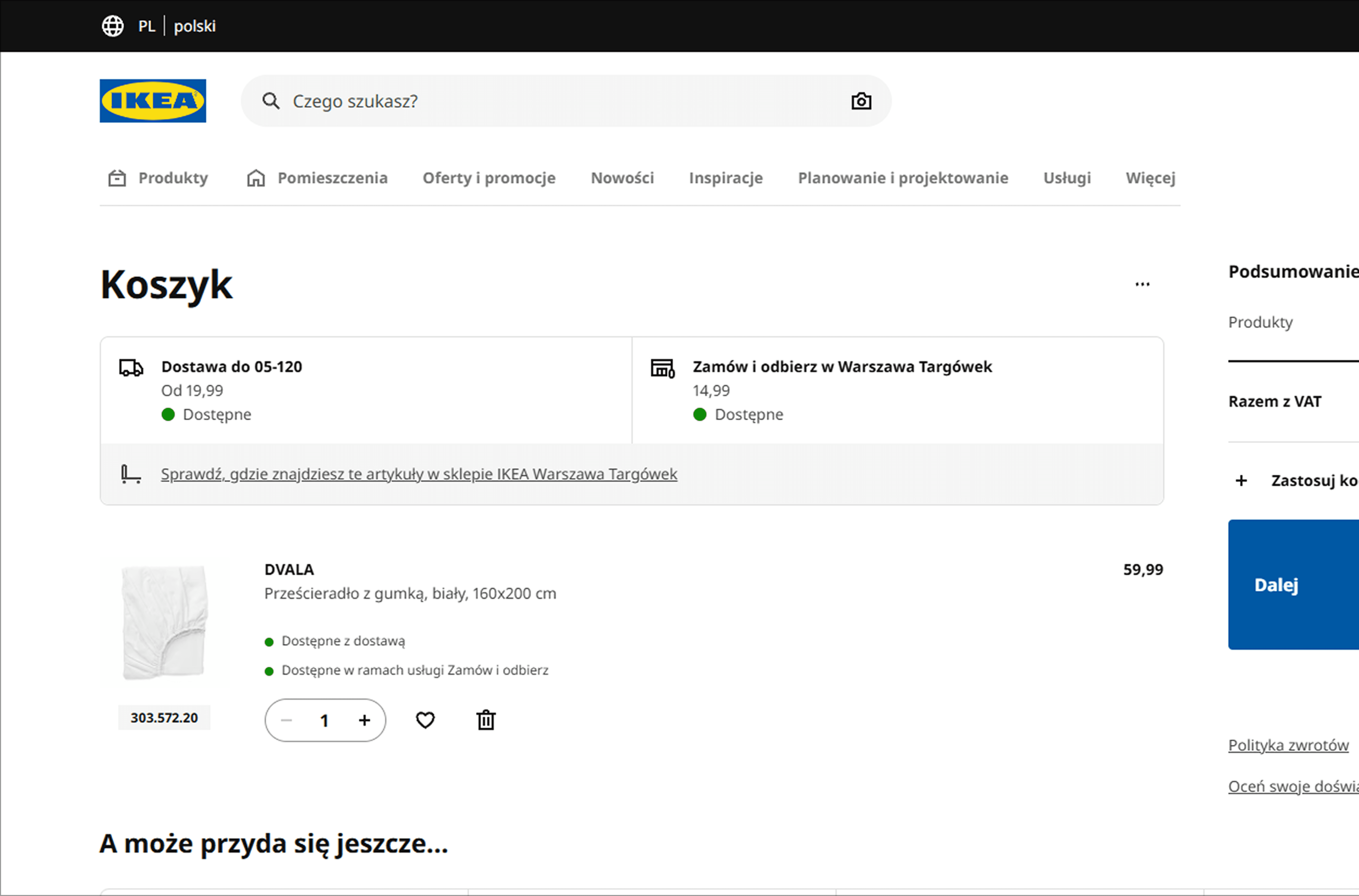
Delivery Date Prioritization: Estimated arrival dates are shown before carrier details. Baymard reports that 48% of sites still don’t use delivery dates clearly.
Smart Cart Summary
Add-ons should stay secondary to the main purchase. This keeps the cart focused while still allowing relevant recommendations.
Delivery Date Prioritization
Estimated arrival dates are shown before carrier details. Baymard reports that 48% of sites still don’t use delivery dates clearly.

Delivery Outcome
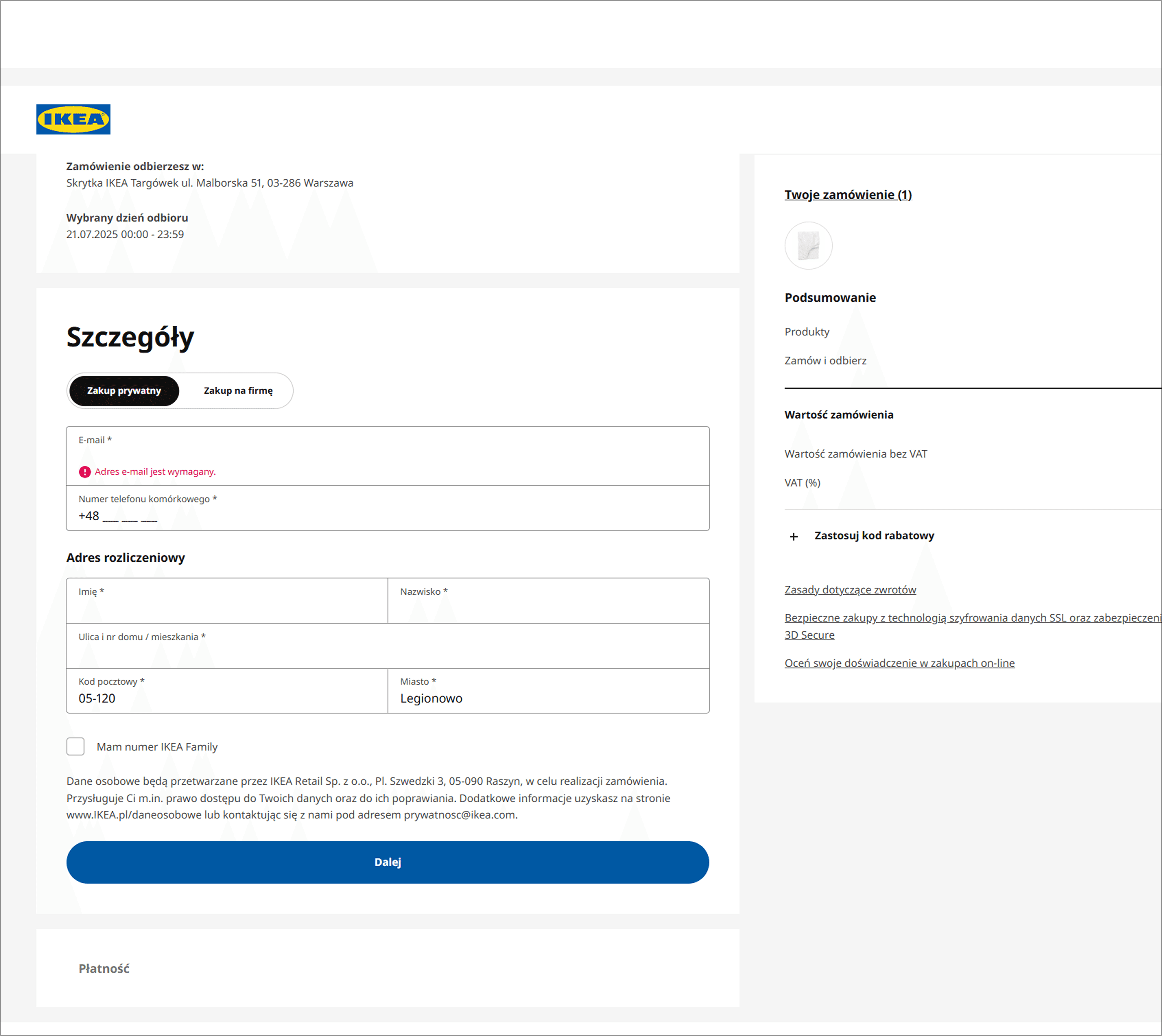
Location-Based Shipping: AKEA updates delivery options based on location. Baymard reports that 28% of mobile sites still don’t use zip-code autodetection.
Delivery Outcome
Summary of previous steps: IKEA keeps previous checkout information visible in summaries, so users can review details without going back.
Location-Based Shipping
IKEA updates delivery options based on location. Baymard reports that 28% of mobile sites still don’t use zip-code autodetection.
Location-Based Shipping
Delivery suggestions are triggered by the zip code entry. This ensures the user sees accurate shipping data as early as possible in the flow.
Summary of previous steps
IKEA keeps previous checkout information visible in summaries, so users can review details without going back.
User Flow
Mapping out a seamless and logical journey
Before designing the final screens, I created low-fidelity flows to test the logic with the client. Once we agreed on the path, I built this high-fidelity flow using the finished UI. It shows the optimized checkout process we designed to make the subscription as fast and simple as possible.
Before designing the final screens, I created low-fidelity flows to test the logic with the client. Once we agreed on the path, I built this high-fidelity flow using the finished UI. It shows the optimized checkout process we designed to make the subscription as fast and simple as possible.
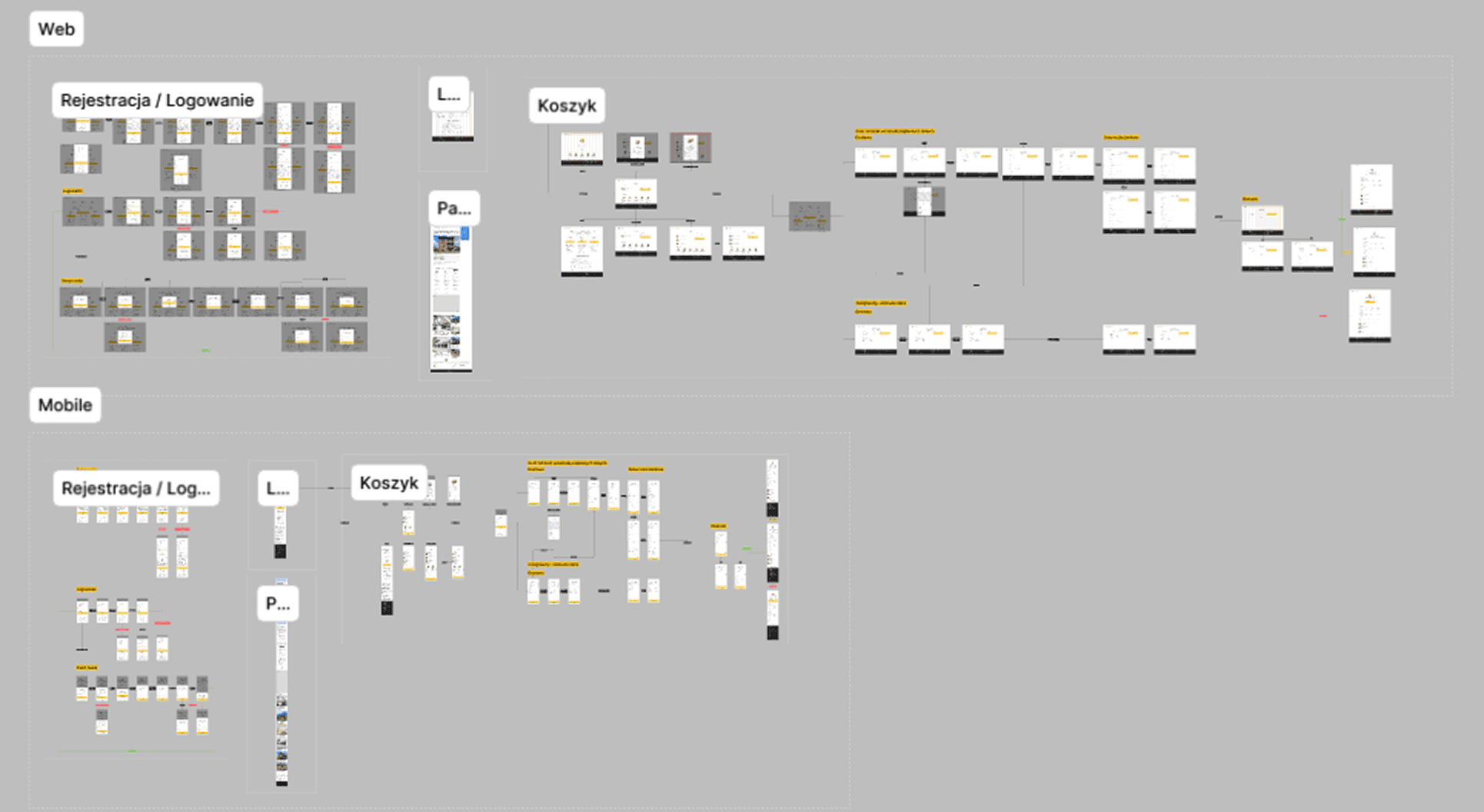
Visualizing the full scale of the User Flow, documenting every possible path and edge case.
Design decisions
Turning insights into a functional reality
I designed the final interface to fix the specific problems I found during research. Every change was made to simplify the process and help users make decisions faster. These screens show how each part of the design solves a real pain point, making the checkout much smoother.
I designed the final interface to fix the specific problems I found during research. Every change was made to simplify the process and help users make decisions faster. These screens show how each part of the design solves a real pain point, making the checkout much smoother.
Landing Page Solution
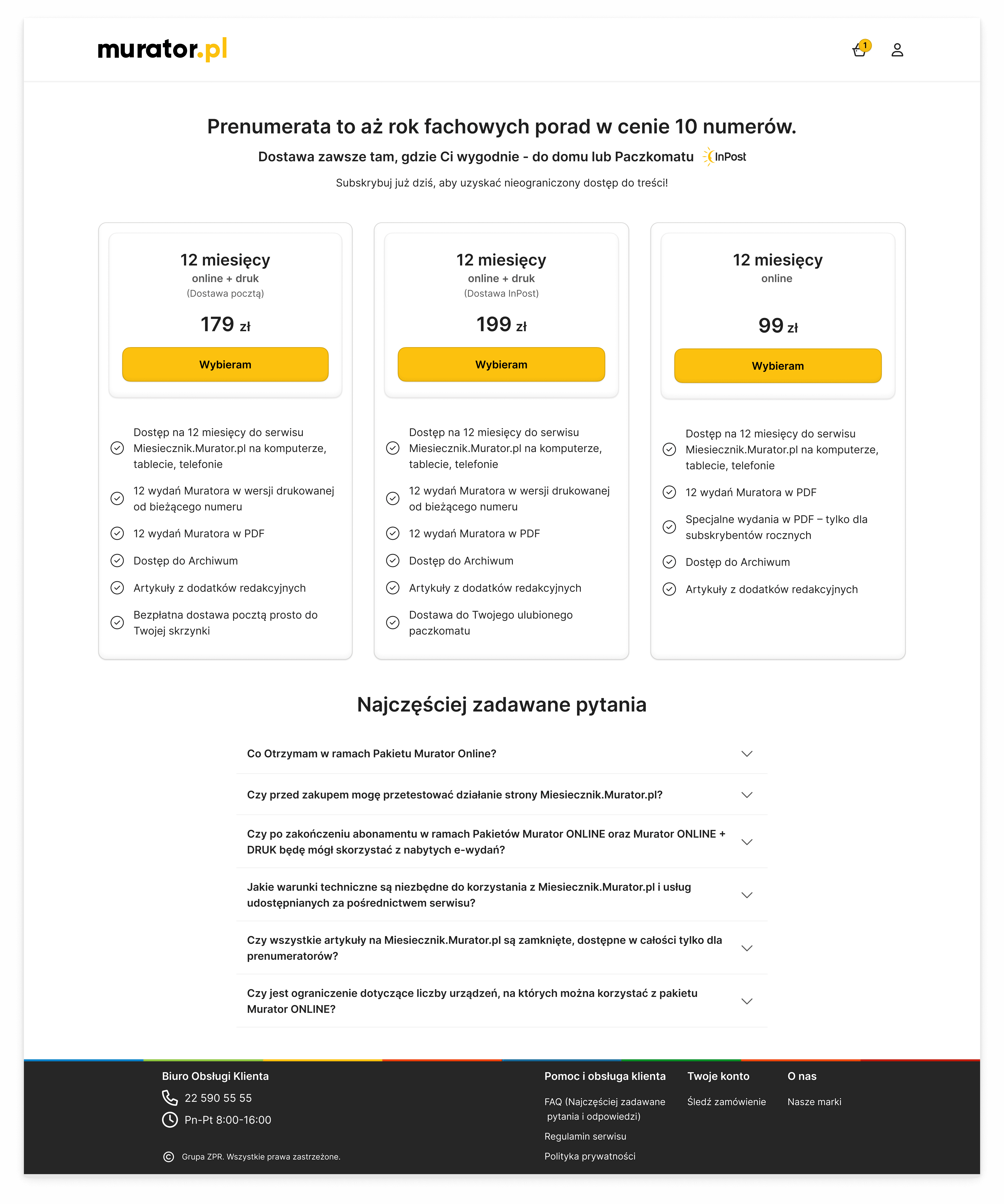
Visual Feature Checklist, Why: I replaced dense plan descriptions with a clear checklist, making benefits easier to scan and compare
Clear Offer Comparison, Why: A 3-column pricing layout makes subscription differences visible side by side and reduces decision effort.
Cart Solution
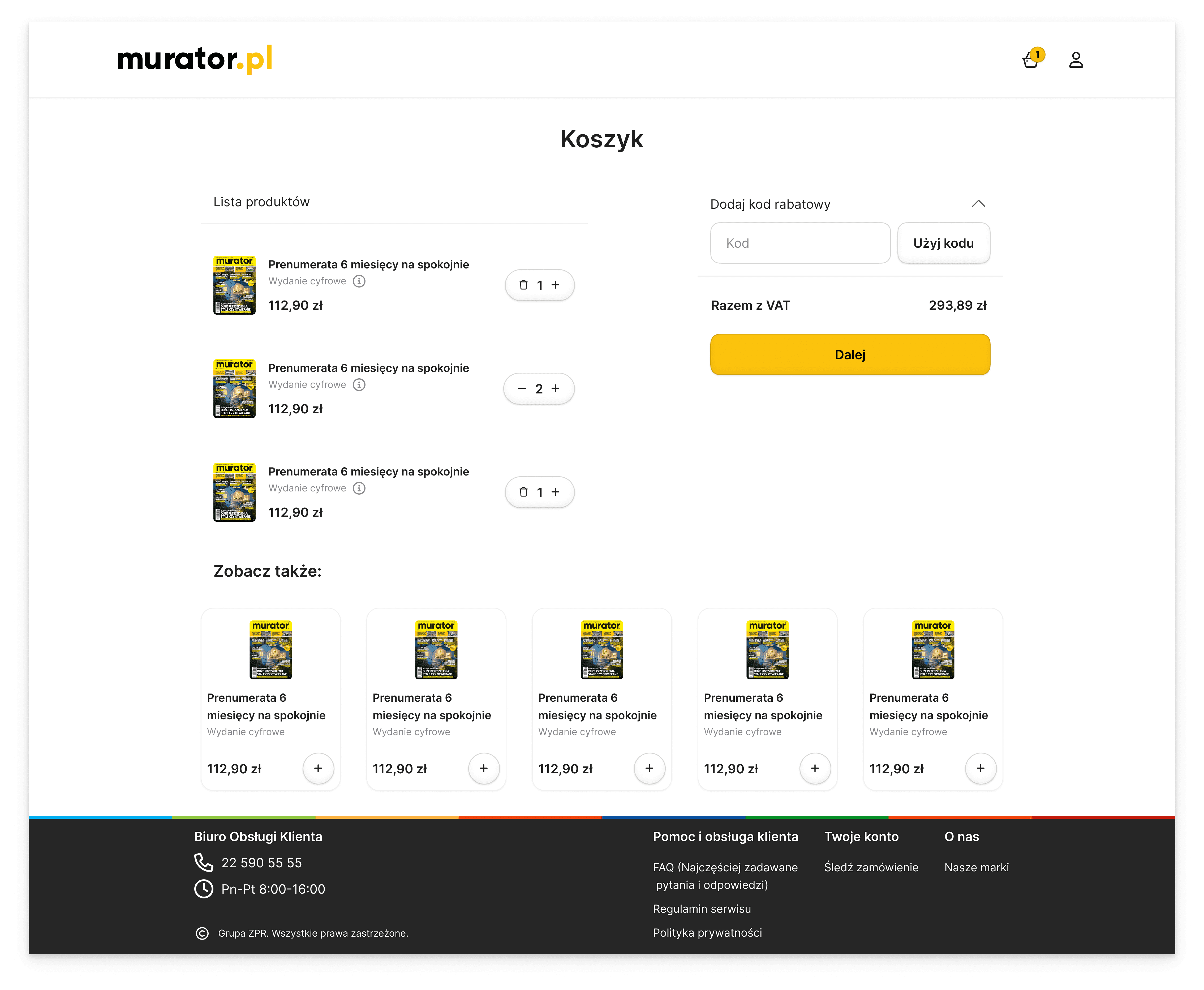
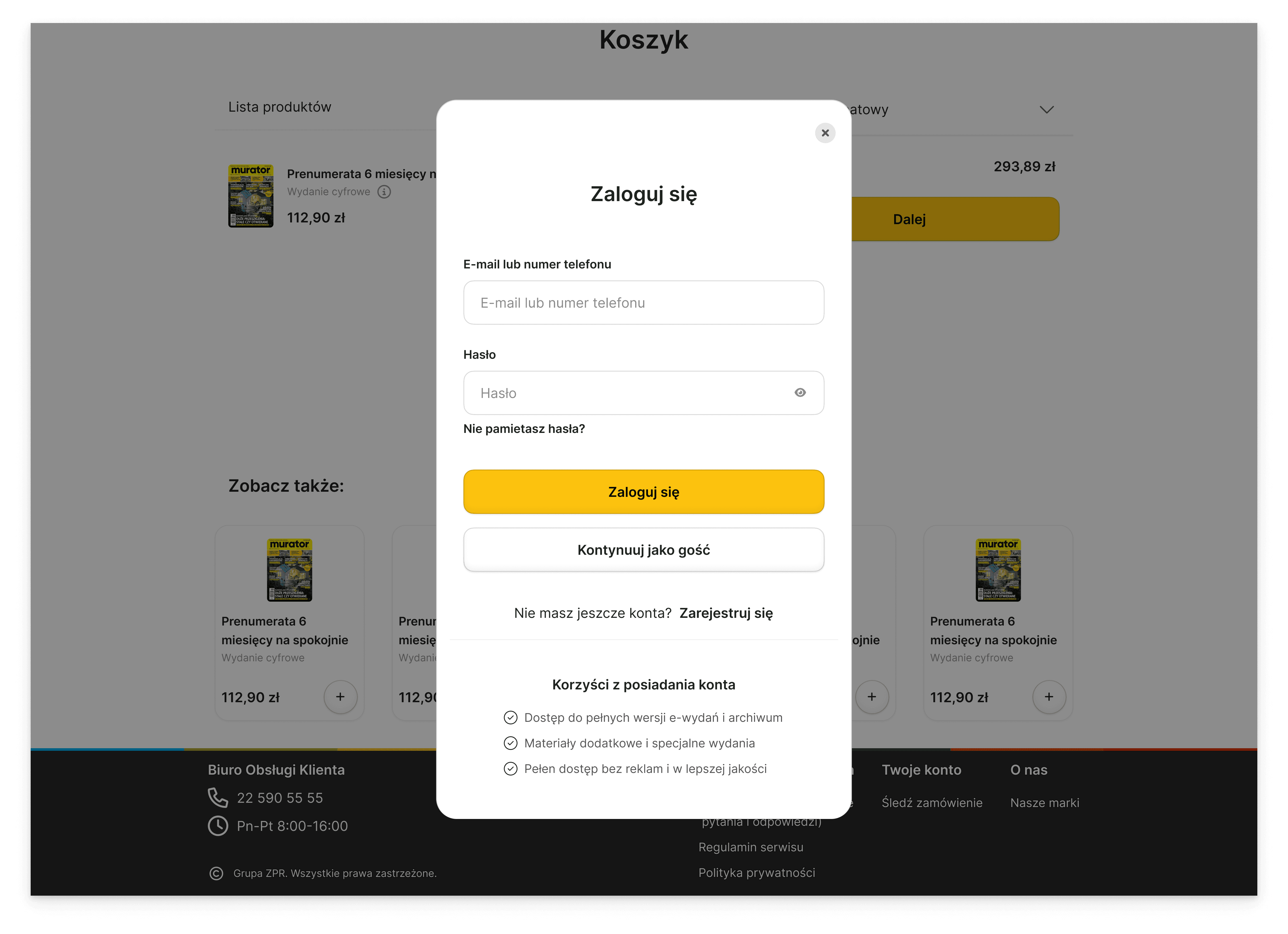
Law of Proximity, Why: By applying the Law of Proximity, I grouped the promo code field with the primary action button to create a clear visual hierarchy and guide the user toward completion.
Visual Trust, Why: Product thumbnails were added to the cart, helping users confirm they selected the correct subscription.
Cross-selling, Why: Relevant add-ons were placed after the main cart decision. Baymard found that 52% of desktop sites show cart cross-sells that are irrelevant or too generic.
Cart Solution
Guest Checkout, Why: Guest checkout became a clear path before sign-in, reducing registration friction. Baymard reports that 19% of users abandon when a site requires
account creation.
Clear Offer Comparison
Why: A 3-column pricing layout makes subscription differences visible side by side and reduces decision effort.
Visual Feature Checklist
Why: I replaced dense plan descriptions with a clear checklist, making benefits easier to scan and compare
Clear Offer Comparison
Why: Implementing a 3-column pricing layout simplifies the decision-making process, preventing "choice paralysis" and allowing users to instantly compare plan values..
Visual Feature Checklist
Why: I replaced dense plan descriptions with a clear checklist, making benefits easier to scan and compare
Visual Trust
Why: Product thumbnails were added to the cart, helping users confirm they selected the correct subscription.
Cross-selling
Why: Relevant add-ons were placed after the main cart decision. Baymard found that 52% of desktop sites show cart cross-sells that are irrelevant or too generic.
Law of Proximity
Why: Grouping the promo code with a bold, brand-colored button creates a clear visual hierarchy and uses the Law of Proximity to guide users naturally toward the final action.
Guest Checkout
Why: Guest checkout became a clear path before sign-in, reducing registration friction. Baymard reports that 19% of users abandon when a site requires account creation.
Hi-Fi Interface
Polishing the brand with a modern visual language
I turned a cluttered checkout process into a clean, focused experience. By using familiar e-commerce patterns, I ensured that the only thing users need to focus on is completing their purchase. I removed all unnecessary distractions to make the path to the final "buy" button as clear as possible.
I turned a cluttered checkout process into a clean, focused experience. By using familiar e-commerce patterns, I ensured that the only thing users need to focus on is completing their purchase. I removed all unnecessary distractions to make the path to the final "buy" button as clear as possible.
Desktop
Mobile
Landing Page
The main goal of this landing page was to redesign the magazine’s offers so they are clear and easy to read. I focused on making all the offers look consistent and organized, so visitors can quickly understand what’s being offered. The design is simple, clean, and easy to follow, which makes the magazine’s content more user-friendly.
Cart
I wanted to make the checkout as clear as possible. The order summary is always visible on the right, so the user knows exactly what they are paying for. At the bottom, I added small product suggestions that don't distract from finishing the purchase.

Sign Up
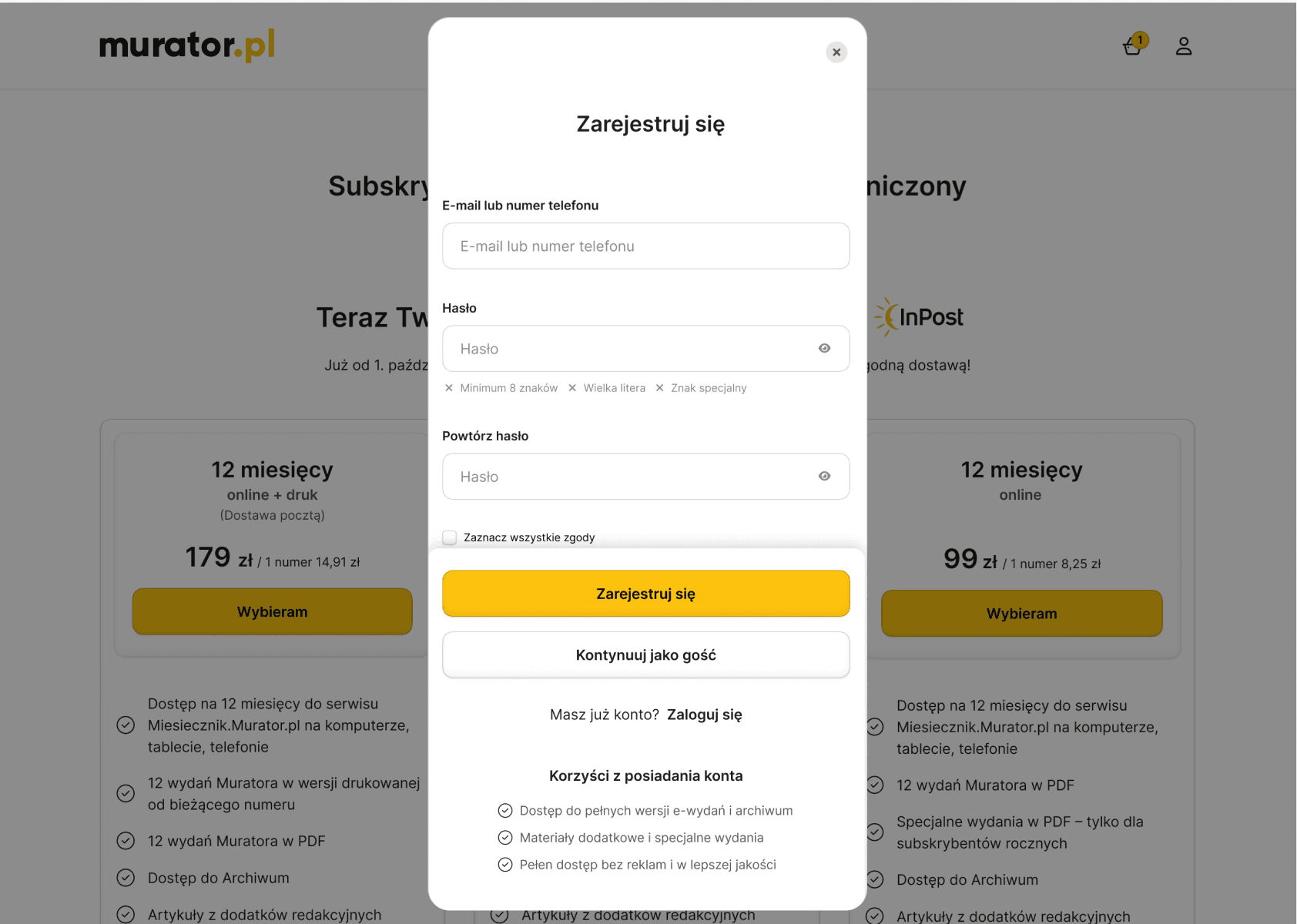
I designed the sign-up form as a modal to keep the user in the context of their purchase. The form is minimal, asking only for the most important data like email or phone number. Most importantly, I included a clear option to continue as a guest, so the registration doesn't become a barrier to finishing the order.
Delivery - Guest
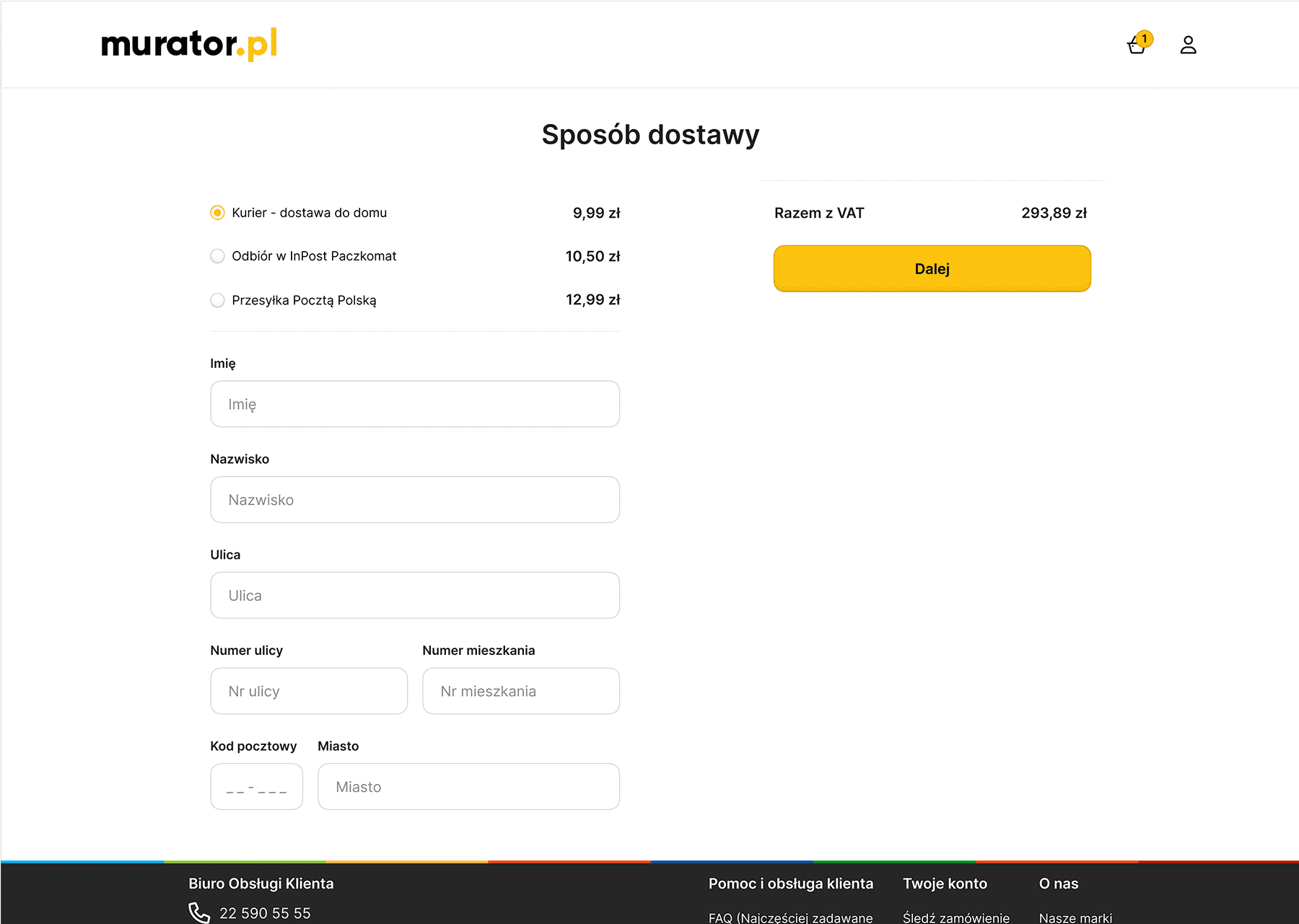
For users shopping as guests, I designed a simple form that asks only for essential shipping data. By removing unnecessary fields, I made the process much faster, ensuring that users can finish their order without any frustration.
Billing details - Individual
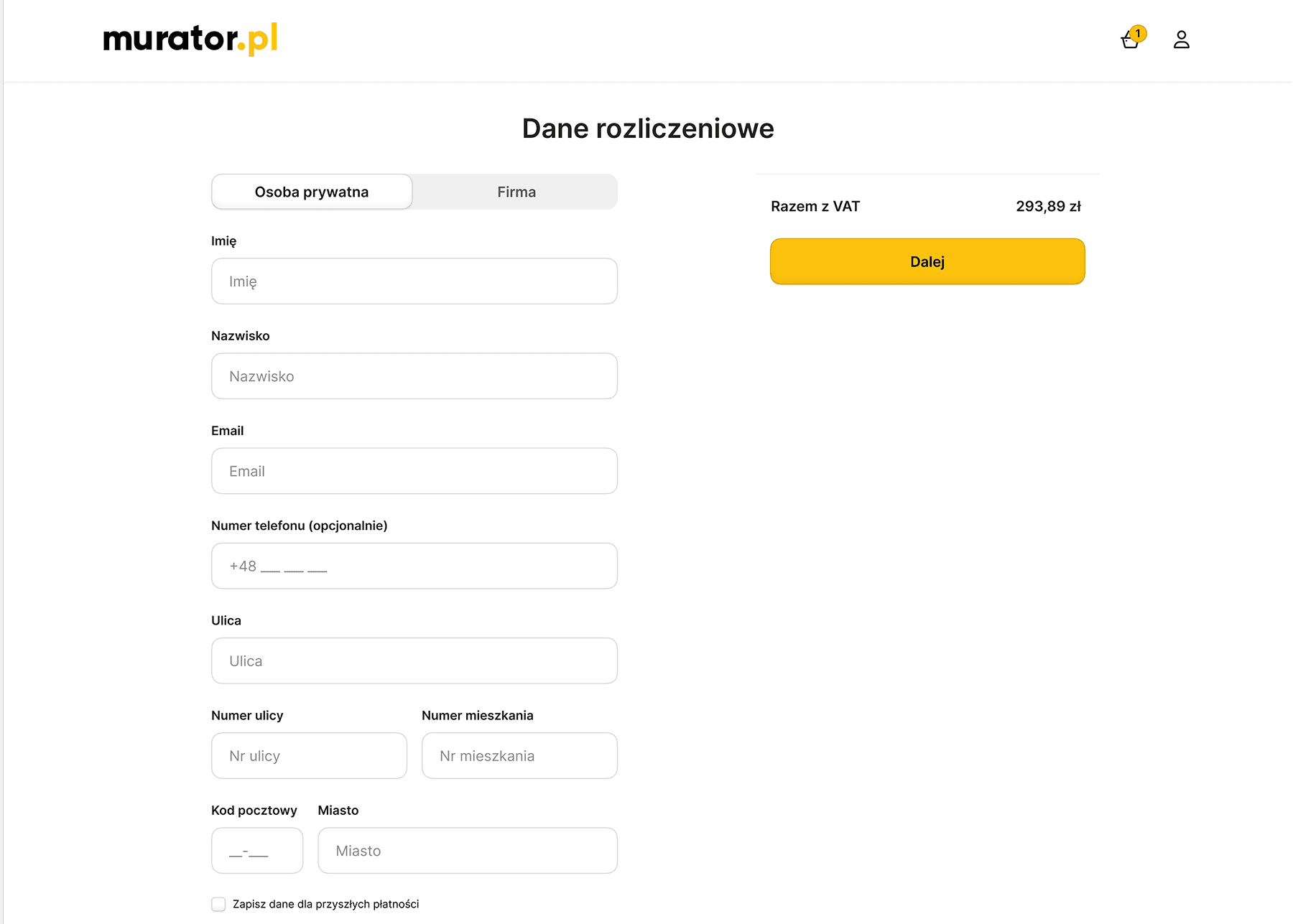
I simplified the billing form by asking only for necessary information. Users can easily switch between "Individual" and "Company" options, ensuring that the interface stays clean and shows only the relevant fields for each choice.
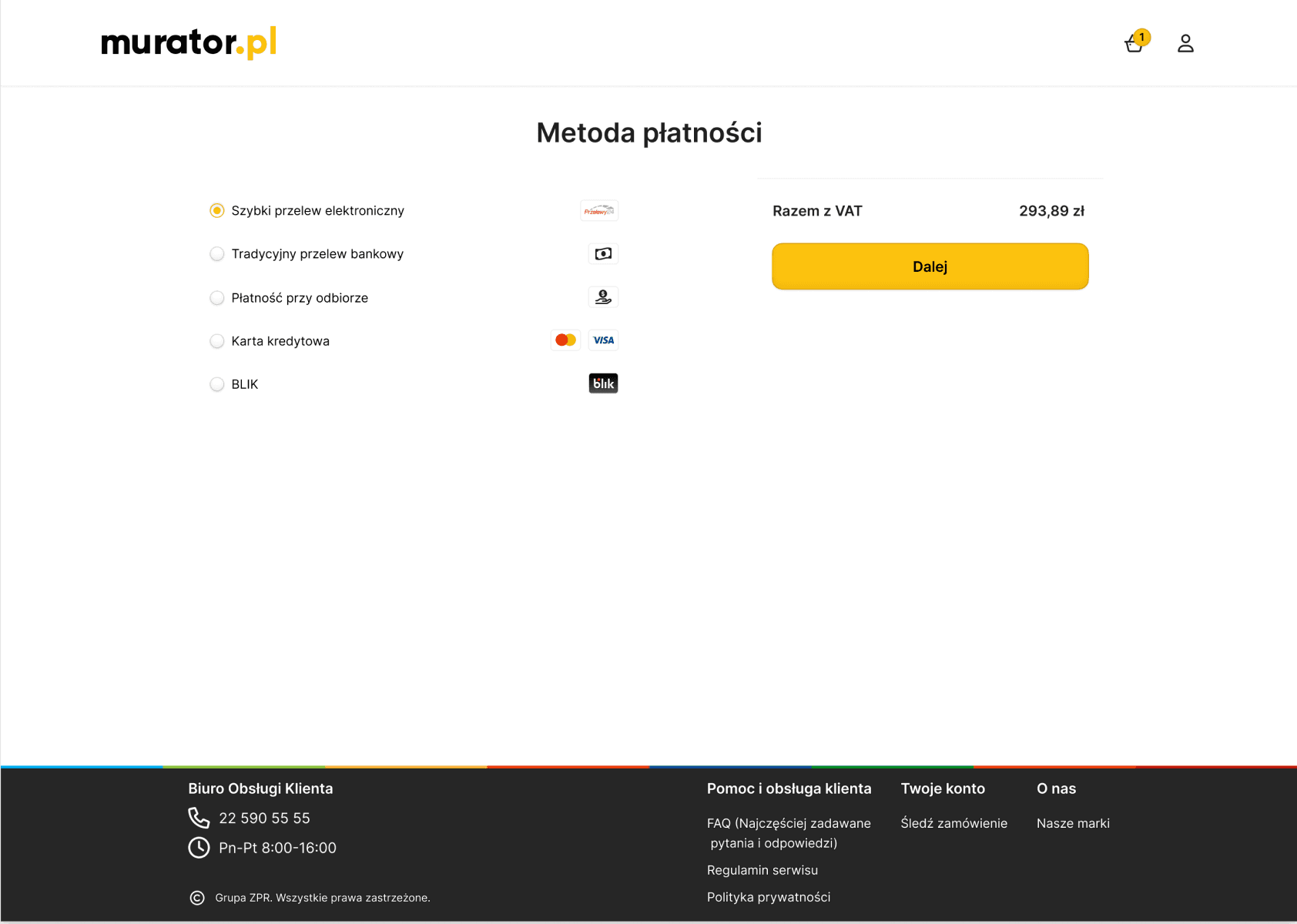
Przelewy 24
I chose Przelewy24 as the main payment gateway because it’s the most trusted and familiar option for Polish users. The interface is clean, and clicking "Next" takes the user directly to their bank, making the whole process feel secure and official.
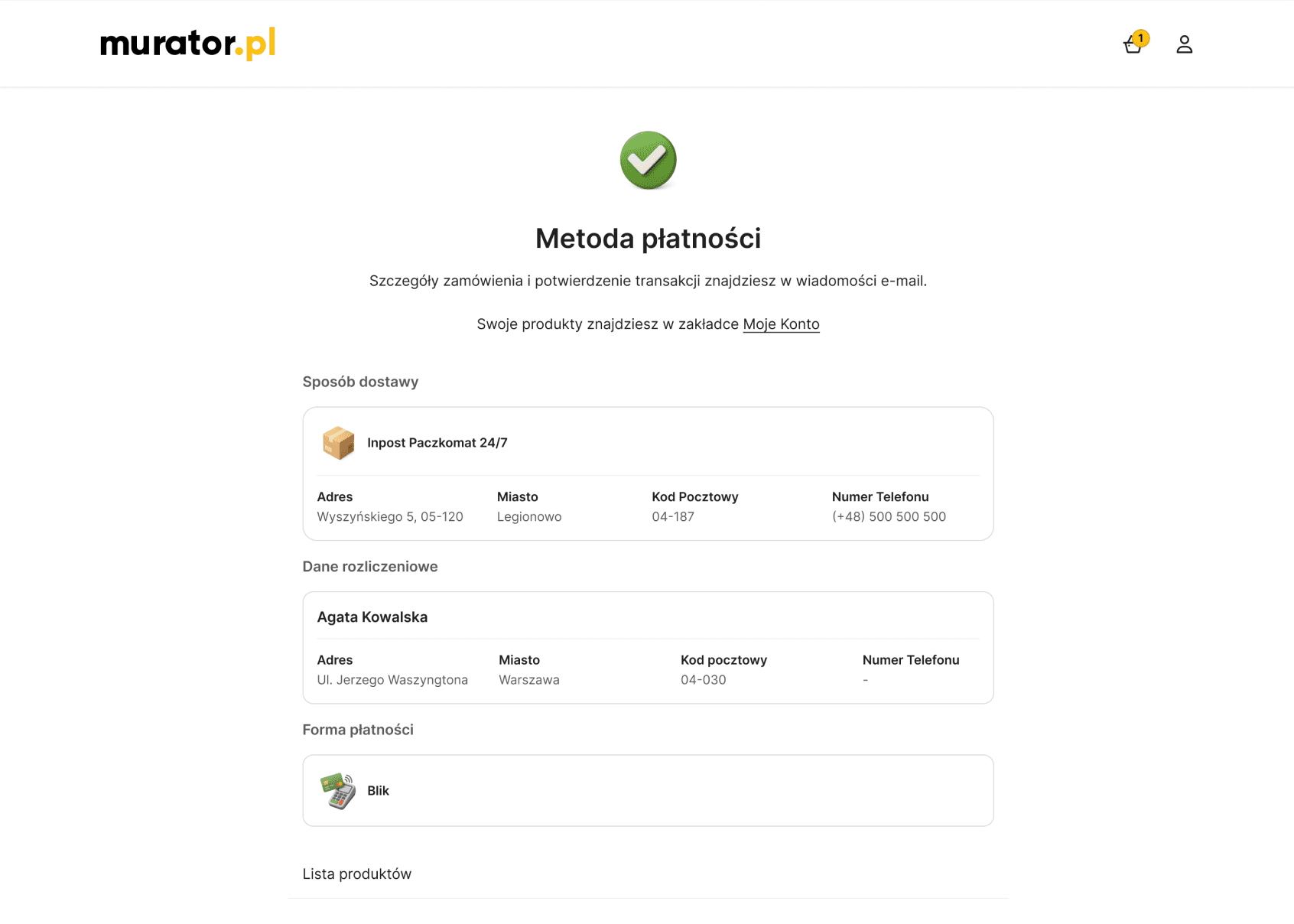
Successful Payment
This screen confirms that the purchase was successful. I included a clear summary of the order and the next steps, so the user feels reassured. The goal was to give a positive final experience and make it easy to go back to the home page or start reading.
Desktop
Mobile
Landing Page
My main goal was to simplify the complex subscription offers to help users make faster decisions. By introducing a 3-column layout and a visual feature checklist, I reduced the cognitive load and allowed for an instant "at-a-glance" comparison. This new information architecture makes the magazine's value clear and directly supports higher conversion rates.
Cart
I wanted to make the checkout as clear as possible. The order summary is always visible on the right, so the user knows exactly what they are paying for. At the bottom, I added small product suggestions that don't distract from finishing the purchase.
Sign Up
I designed the sign-up form as a modal to keep the user in the context of their purchase. The form is minimal, asking only for the most important data like email or phone number. Most importantly, I included a clear option to continue as a guest, so the registration doesn't become a barrier to finishing the order.
Delivery - Guest
For users shopping as guests, I designed a simple form that asks only for essential shipping data. By removing unnecessary fields, I made the process much faster, ensuring that users can finish their order without any frustration.
Billing details - Individual
I simplified the billing form by asking only for necessary information. Users can easily switch between "Individual" and "Company" options, ensuring that the interface stays clean and shows only the relevant fields for each choice.
Przelewy 24
I chose Przelewy24 as the main payment gateway because it’s the most trusted and familiar option for Polish users. The interface is clean, and clicking "Next" takes the user directly to their bank, making the whole process feel secure and official.
Successful Payment
This screen confirms that the purchase was successful. I included a clear summary of the order and the next steps, so the user feels reassured. The goal was to give a positive final experience and make it easy to go back to the home page or start reading.
Delivery & hand-off
Ready for launch - from design to development
I delivered the complete project with full documentation and assets for the development team. Everything was prepared to be hand-off ready, so the developers had exactly what they needed to build the system according to the new standards.
My goal was to simplify the entire subscription process. The project is now in the implementation phase, and I’m confident that the new flow will significantly improve both the user experience and business results.
Delivery & hand-off
Ready for launch - from design to development
I delivered the complete project with full documentation and assets for the development team. Everything was prepared to be hand-off ready, so the developers had exactly what they needed to build the system according to the new standards.
My goal was to simplify the entire subscription process. The project is now in the implementation phase, and I’m confident that the new flow will significantly improve both the user experience and business results.